

Platforms · Apple Home
Home Assistant and Apple Home: HomeKit Bridge, HomeKit Device, Matter and Thread (2026)
Use Home Assistant with Apple Home in 2026: HomeKit Bridge for Siri, HomeKit Device for accessories, Matter sharing, Thread and the new Home architecture.
Home Assistant and Apple Home work well together, and you don’t have to pick one. The usual setup is to connect your devices to Home Assistant, build your automations there, and send the devices you want in the Home app back to Apple Home with the HomeKit Bridge integration, so Siri, the Home app, Control Center and your HomePods keep working. To bring a HomeKit-only accessory into Home Assistant, remove it from the Home app and pair it with the HomeKit Device integration. For Matter devices you don’t need to choose at all: a Matter device can belong to Apple Home and Home Assistant at the same time.
Three ways to connect the two
| You want to… | Use | Direction |
|---|---|---|
| Control Home Assistant devices with Siri and the Home app | HomeKit Bridge | Home Assistant → Apple Home |
| Control a HomeKit accessory from Home Assistant | HomeKit Device | Apple accessory → Home Assistant |
| Use one Matter device in both apps | Matter multi-admin (sharing) | Both at once |
First: Apple’s new Home architecture is now required
If you haven’t opened your Home app settings in a while, start there. Apple says support for the previous version of Apple Home “ended on February 10, 2026”, and homes that haven’t updated may be upgraded automatically. A few consequences from Apple’s support article matter for this guide:
- You need a home hub, an Apple TV or HomePod, to share control of your home and get Home notifications. iPad no longer counts as a home hub.
- Every device in the home needs current software: iOS or iPadOS 16.2, macOS 13.1, tvOS 16.2 or watchOS 9.2, or later. Older devices lose access to the updated home.
- Two-factor authentication must be on for everyone you share the home with, along with iCloud Passwords and Keychain.
To check, open the Home app, select the More button, then Home Settings > Software Update.
Method 1: HomeKit Bridge (Home Assistant to Apple Home)
HomeKit Bridge makes Home Assistant entities appear in Apple Home, “even if those devices do not natively support HomeKit”, per Home Assistant’s docs. A Zigbee plug, a Z-Wave lock or a template sensor can all show up in the Home app and answer to Siri.
Set it up
- In Home Assistant, go to Settings > Devices & services and select Add integration. Choose HomeKit Bridge.
- Pick the domains (types of entities) to include, such as lights, switches and climate.
- Home Assistant shows a pairing QR code and PIN. If you don’t see it, check Notifications (the bell icon) in the lower left of the sidebar.
- On your iPhone, open the Home app, tap Add Accessory, and scan the QR code. Or tap Don’t Have a Code or Can’t Scan?, choose the Home Assistant Bridge, and enter the PIN.
- Assign rooms in the Home app.
Include only what you need
A new bridge includes every supported entity in the domains you picked. To trim it, open the HomeKit Bridge integration’s options (Configure) and switch to include mode, which lets you pick specific entities. Exposing less keeps the Home app tidy and avoids a hard limit: Home Assistant’s docs say the HomeKit protocol “only allows a maximum of 150 unique accessories” per bridge. If you need more, create a second bridge.
Cameras, locks and TVs need accessory mode
Home Assistant’s docs say cameras, locks, activity-based remotes and TV-type media players must be set to accessory mode, each on its own HomeKit Bridge entry with a filter that includes just that one entity. Pair each of those separately in the Home app.
Siri Shortcuts with the Companion app
The Home Assistant Companion app for iPhone also adds actions to Apple’s Shortcuts app. Per the Companion docs, you add a Perform action step, choose your server, pick an action like light.turn_on, and record a phrase to say to Siri. That’s handy for a “Bedtime” shortcut that runs a Home Assistant script and turns on an iPhone Focus in the same tap.
Method 2: HomeKit Device (Apple accessory to Home Assistant)
The HomeKit Device integration lets Home Assistant control HomeKit accessories directly and locally. It’s how you move an accessory out of Apple Home and into Home Assistant, after which you can send it back to Apple Home through HomeKit Bridge if you still want Siri.
The key rule from Home Assistant’s docs: Home Assistant can only find accessories that aren’t already paired. If it’s paired with your Apple Home, “remove the device from the Apple Home app. Otherwise you won’t be able to pair it with Home Assistant.”
Wi-Fi and Ethernet accessories
- Find the HomeKit pairing code on the device, its packaging or its screen.
- If the device is paired with Apple Home, remove it from the Home app. A Wi-Fi accessory stays on your network after you remove it.
- In Home Assistant, the accessory should appear as discovered under Settings > Devices & services. Select Add and enter the pairing code.
If it doesn’t appear, Home Assistant can only find accessories that aren’t paired to anything. Reset it per the maker’s instructions. If the accessory is on a different VLAN, Home Assistant’s docs say you need an mDNS reflector for discovery and pairing.
Thread accessories
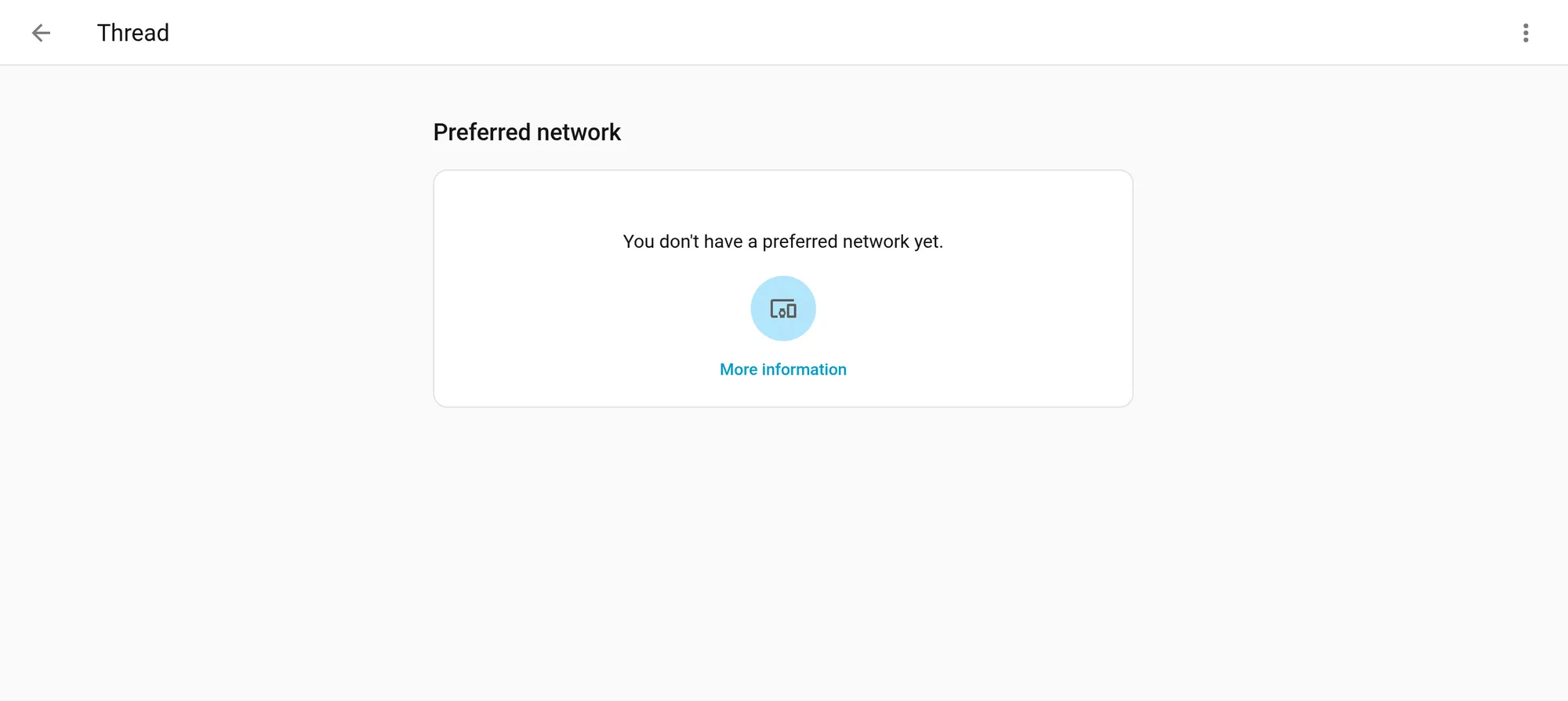
For a Thread accessory that’s already on your Apple Thread network (through a HomePod mini or Apple TV), Home Assistant’s docs describe a shortcut: remove the accessory from the Home app but don’t reset it. It keeps its Thread network details, Home Assistant discovers it over Thread, and you pair it with its code. Alternatively, you can pair it over Bluetooth and then move it to Home Assistant’s preferred Thread network: on the device page, under Configuration, select Press to provision the Thread credentials.
What comes across
Home Assistant supports most common HomeKit accessory types, including lights, switches and outlets, locks, thermostats, covers, fans, sensors, air quality monitors and humidifiers, and stateless buttons and doorbells as automation triggers. Its docs note that an accessory outside that list may still pair but appear with no entities. Accessories that depend on Apple-only features, like HomeKit Secure Video cameras, are better left in Apple Home.
Method 3: Matter in both places at once
Matter devices support multiple “fabrics” (controllers) at once. Home Assistant’s docs describe adding the same device to “Google Home, Apple Home, and Home Assistant” simultaneously. Each app controls it locally.
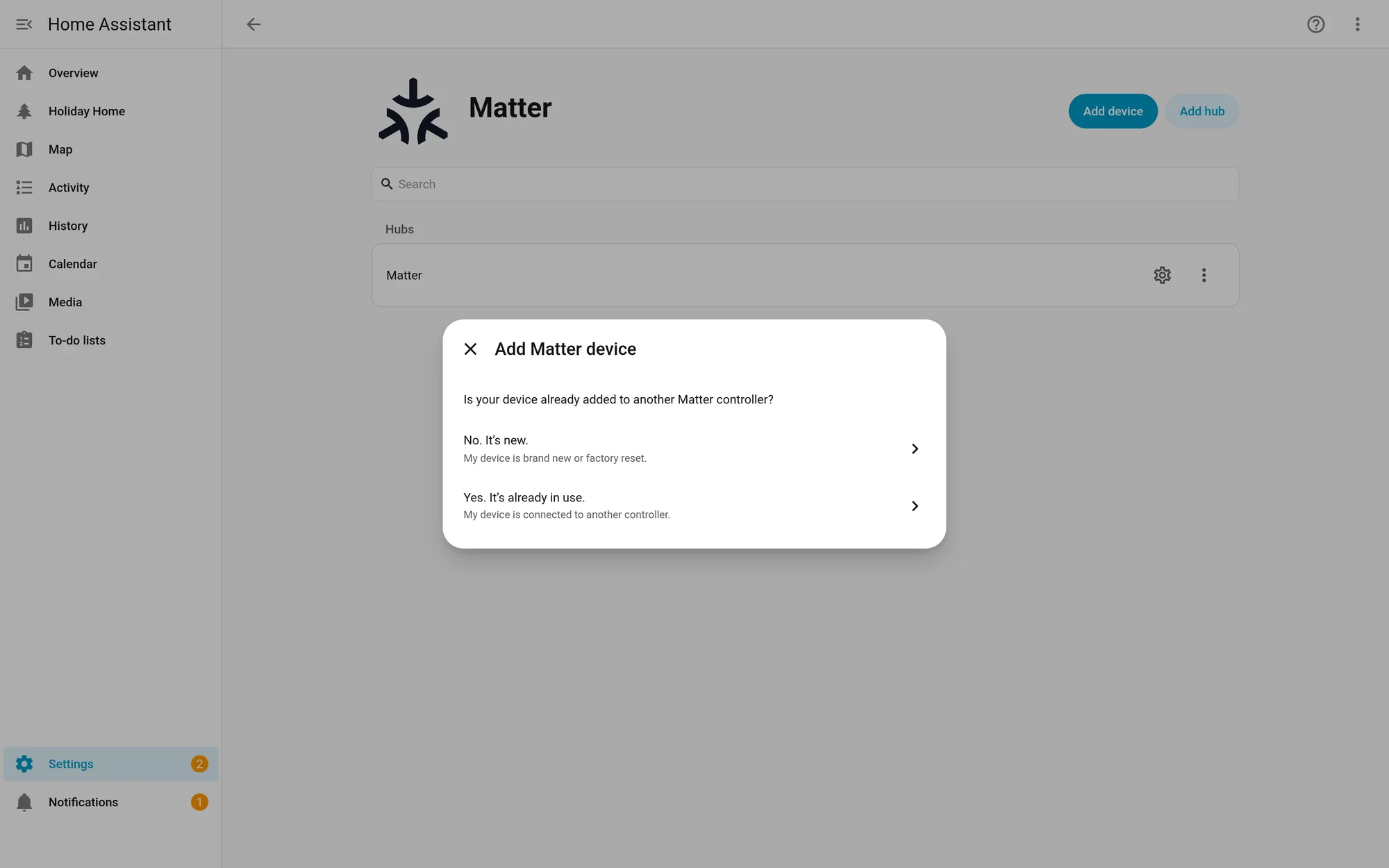
Already in Apple Home? Share it to Home Assistant. You need the Home Assistant Companion app on your iPhone and the Matter integration set up in Home Assistant.
- Open the Home Assistant app on your iPhone and go to Settings > Connectivity > Matter.
- Select Add device.
- When asked, select Yes. It’s already in use, then choose the controller it’s in, Apple Home.
- Follow the prompts, then name the device and pick an area.
Already in Home Assistant? Share it to Apple Home. On the device’s page in Home Assistant, select Share device, then follow the steps in the Home app. To see or remove the controllers a device belongs to, use Manage fabrics in the same menu. Home Assistant’s docs add that if you remove Apple Home there, you should also remove the Apple Keychain entry.
One thing Matter can’t do: turn your Home Assistant devices into Matter devices for Apple. Home Assistant’s docs say it “is not a bridge itself”, so for Zigbee, Z-Wave and other non-Matter devices, HomeKit Bridge is still the way into Apple Home.
Thread with Apple border routers
Thread devices need a border router. Home Assistant’s Thread docs list the HomePod (2nd generation), HomePod mini, Apple TV 4K (3rd generation) Wi-Fi + Ethernet and Apple TV 4K (2nd generation) as Apple border routers. Home Assistant can use your Apple Thread network, and the iOS Companion app is how you share credentials between them.
Two Apple-specific caveats from Home Assistant’s Matter docs:
- Matter firmware updates from Home Assistant don’t work on Thread networks with any Apple border router. The docs say Apple border routers don’t forward the mDNS packets Home Assistant needs, and you’ll typically see “Target node did not process the update file”. The Home app may offer updates itself for some devices, such as Eve’s.
- Pairing trouble is common. Our Matter-over-Thread pairing fixes explainer collects the documented workarounds.
For a border router you control, Home Assistant’s own Connect ZBT-2 can run Home Assistant’s OpenThread Border Router, alongside or instead of Apple’s. Our Thread border router guide compares the options.
SkyConnect is now Connect ZBT-1, and ZBT-2 replaces it
Older guides, including the earlier version of this one, recommend the Home Assistant SkyConnect USB stick for Zigbee and Thread. Home Assistant renamed it Connect ZBT-1 in June 2024 (“the exact same hardware, capability, and support”), and its Zigbee docs now list ZBT-1 as discontinued and “replaced by the Connect ZBT-2”. A SkyConnect or ZBT-1 you already own is still fully supported. If you’re buying new, get the ZBT-2. Note that the ZBT-2 runs Zigbee or Thread, not both at once, per its FAQ; plan on two radios if you need both.
Why use both
Apple Home is good at what it’s built for: Siri, HomePods, Apple Watch and Control Center access, location-based personal automations, and sharing your home with family members who just want the Home app. Home Assistant adds what Apple Home doesn’t do well: devices from almost any brand and protocol, multi-step automations with conditions, local backups of your whole setup, and dashboards you design yourself. With HomeKit Bridge and Matter sharing, each app does the part it’s best at.
How pages like this are made: How we work.
Sources
- Home Assistant docs: HomeKit Bridge integration
- Home Assistant docs: HomeKit Device integration
- Home Assistant docs: Matter integration
- Home Assistant docs: Thread integration
- Home Assistant docs: Zigbee (ZHA) integration, compatible hardware
- Home Assistant blog: SkyConnect becomes Connect ZBT-1 (June 13, 2024)
- Home Assistant: Connect ZBT-2 product page and FAQ
- Home Assistant Companion docs: Apple App Intents (Shortcuts and Siri)
- Home Assistant 2026.10 release notes (HomeKit Bridge valves)
- Apple Support: Update Apple Home