

Home Assistant · Guides & Tutorials
Getting started with dashboards: Sections view, cards, badges and visibility
Build a Home Assistant dashboard in the Sections view: sections, Tile cards, header badges and per-user visibility, with a working YAML example.
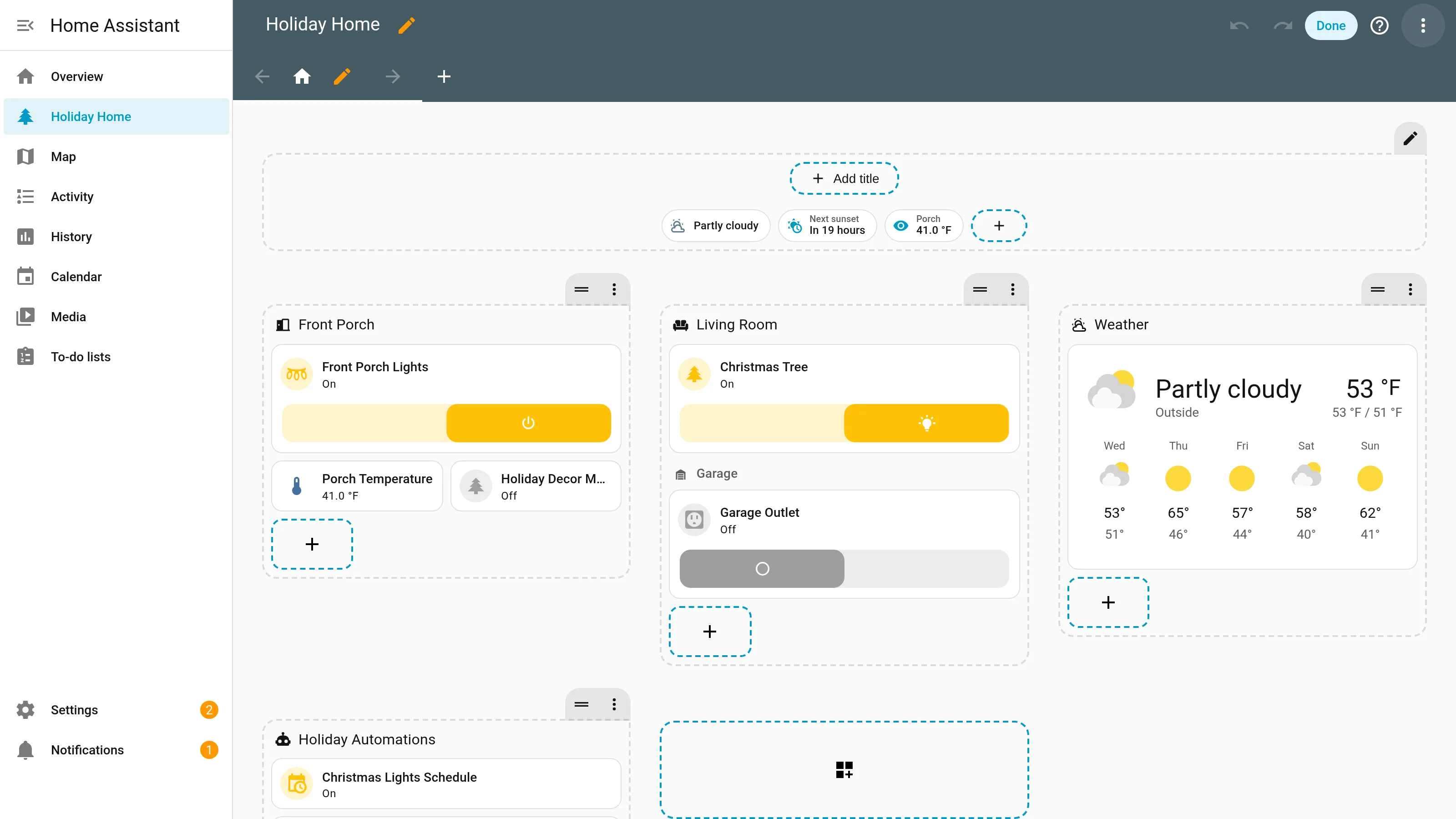
The Sections view is the default layout for new Home Assistant dashboards, and it’s the one to learn first. You add a view, pick Sections as the view type, then fill it with sections: groups of cards, each with its own heading. Put your most-used controls in Tile cards, put at-a-glance states like the weather or the next sunset in badges across the top, and use the Visibility tab to show a section only to certain people or on certain screens. You don’t need vertical or horizontal stack cards to group things, which is what most older tutorials still teach.
New to dashboards in general? Our Home Assistant dashboards guide explains views, cards and badges and how they fit together. This guide is the hands-on part.
Why Sections instead of Masonry
Masonry, the old default, places cards in columns automatically, and you control grouping by nesting cards inside stack cards. The Sections view puts cards on a grid, inside sections you create yourself. Home Assistant’s docs say the Sections view lets you “group cards without using horizontal or vertical stack cards”, and drag-and-drop rearranging of sections and cards is, per the same page, “not yet possible in other views”.
If you already have a Masonry view, you don’t have to rebuild it by hand. Home Assistant’s views documentation describes migrating a Masonry view’s content into a Sections view. It doesn’t work the other way: the docs say you can’t migrate a Sections view into another view type.
Step 1: Create a dashboard and a Sections view
If you want to experiment without touching the dashboard your household uses, start a new one:
- Go to Settings > Dashboards and select Add dashboard.
- Choose New dashboard from scratch, then give it a name and an icon and save it.
- Open the new dashboard from the sidebar.
Now set up the view. Home Assistant’s steps for a new view:
- Edit the dashboard (the pencil icon at the top) and add a view with +.
- Under View type, select Sections.
- Set Max number of sections wide. This caps the number of columns on a wide screen. Four is a sensible start for a desktop screen.
- Decide on Dense section placement. With it on, Home Assistant fills gaps by moving cards around. The docs warn that this means “less control over the order of the cards”, and that it only affects horizontal gaps when you have sections wider than one column. Leave it off until you see gaps that bother you.
- Select Save. You get an empty view with one section ready for cards.
Step 2: Add sections and Tile cards
Each section is a small grid of cards. Plan one section per room or per job: Front porch, Living room, Weather, Automations.
- In the first section, select Add card. Home Assistant suggests cards for your entities, and the Tile card is the one to reach for first. It shows an entity’s name, icon and state, and tapping it opens the details or toggles it, depending on how you set it up.
- To add another section, select Create section. Home Assistant puts a Heading card at the top of every new section. Select it to change the text and icon, or delete it if you don’t want a title.
- To make a card wider or narrower, open it and use the grid size picker on the Layout tab. On the grid, a section is 12 columns wide, so a 12-column tile fills the row and two 6-column tiles sit side by side.
- Add a toggle feature to Tile cards for lights and plugs. It puts a big on/off control on the card itself, which works well on a phone.
To move things, stay in edit mode. Drag a section by its move handle, and tap and hold a card to drag it to a new spot, in the same section or a different one.
Step 3: Add header badges
Badges sit in the view’s header, above the sections. They’re for states you want to see, not things you tap often: the outside temperature, who’s home, the next sunset.
- In edit mode, select Add badge in the header.
- Pick an entity. You can show or hide its name, icon and state.
- To add a title above the badges, select Add title. The title accepts Markdown and templates.
- The edit button on the header lets you change the layout. Per the docs,
layoutcan bestart,center(the default) orresponsive, andbadges_positioncan bebottom(the default) ortop.
Step 4: Show sections only when they matter
Any section, card or badge can have visibility conditions. Edit it, open the Visibility tab and select Add condition. If you add more than one, the section only shows when all of them pass. With no conditions, it’s always shown to everyone.
Home Assistant 2026.10 widened the list. The release notes say the Visibility tab now offers “the same conditions as the automation editor, including Template, Sun, Zone, and Device”, next to dashboard-only ones like Screen and User. The top of the tab also tells you whether the card is visible right now, and each condition shows whether it currently passes. That makes it much easier to see why a section has disappeared.
Three that are useful on day one:
- User: show a section, like an admin or “Server health” section, only to the people who need it.
- Screen: show a big camera section on a desktop or wall tablet, and hide it on phones.
- Entity state: show the Christmas lights section only while a “Holiday decor mode” helper is on.
Visibility hides things from view. It isn’t a permission system: anyone who can open the dashboard can still reach the same entities in other ways. Use separate dashboards or Home Assistant’s user settings if you need real separation.
The example dashboard in YAML
Prefer to start from code? Edit the dashboard, open the three-dot menu and select Raw configuration editor, then paste this in place of the existing configuration. It builds the layout in the screenshot above (with one fewer section). Replace the entity IDs with your own; the ones here are placeholders.
title: Holiday Home
views:
  - title: Home
    path: home
    icon: mdi:home
    type: sections
    max_columns: 4
    badges:
      - type: entity
        entity: weather.forecast_home
        name: Outside
        show_name: false
      - type: entity
        entity: sensor.sun_next_setting
        name: Next sunset
      - type: entity
        entity: sensor.porch_temperature
        name: Porch
    sections:
      - type: grid
        cards:
          - type: heading
            heading: Front Porch
            icon: mdi:door-open
          - type: tile
            entity: switch.porch_plug
            name: Front Porch Lights
            icon: mdi:string-lights
            features:
              - type: toggle
            features_position: bottom
            grid_options:
              columns: 12
          - type: tile
            entity: sensor.porch_temperature
            name: Porch Temperature
            grid_options:
              columns: 6
          - type: tile
            entity: input_boolean.holiday_decor_mode
            name: Holiday Decor Mode
            icon: mdi:pine-tree
            grid_options:
              columns: 6
      - type: grid
        cards:
          - type: heading
            heading: Living Room
            icon: mdi:sofa
          - type: tile
            entity: light.tree
            name: Christmas Tree
            icon: mdi:pine-tree
            features:
              - type: toggle
            features_position: bottom
            grid_options:
              columns: 12
      - type: grid
        visibility:
          - condition: state
            entity: input_boolean.holiday_decor_mode
            state: "on"
          - condition: screen
            media_query: "(min-width: 1024px)"
        cards:
          - type: heading
            heading: Weather
            icon: mdi:weather-partly-cloudy
          - type: weather-forecast
            entity: weather.forecast_home
            show_current: true
            show_forecast: true
            forecast_type: daily
            grid_options:
              columns: 12
The visibility block on the Weather section shows the two conditions working together: the section only appears while decor mode is on and the screen is at least 1,024 pixels wide. Delete that block if you want it visible all the time.
A few notes on the YAML:
- Every section is
type: grid.grid_options: columnssets a card’s width out of 12. max_columnsis the YAML name for Max number of sections wide. Dense placement is easiest to switch on in the view’s settings in the editor.- The
input_booleanhelper has to exist first. Create it under Settings > Devices & services > Helpers > Create helper > Toggle.
Common problems
Cards are in one long column. On a narrow window or a phone, sections stack. That’s by design. Widen the window, or check Max number of sections wide if you expected more columns on a big screen.
A gap won’t go away. Make the cards in that row add up to 12 columns, or turn on dense section placement and accept that Home Assistant may reorder cards to fill it.
A section vanished. Open it in edit mode and check the Visibility tab. Since 2026.10, it tells you which condition is failing.
A tutorial says to use a vertical stack card. That’s Masonry thinking. In Sections, the section is the stack. Stacks still work, but you rarely need them.
Where to go next
- Want the lights on this dashboard to switch themselves on at sunset? Our Christmas lights automation includes a free blueprint.
- Our dashboards guide covers community cards, tablets and phone layouts, with links to each step-by-step guide as it goes live.
How pages like this are made: How we work.