

Home Assistant · Dashboards
Home Assistant dashboards: the complete guide
How Home Assistant dashboards work in 2026: views, the Sections layout, cards, badges, visibility, community cards, tablets and phones, with links to every step-by-step guide.
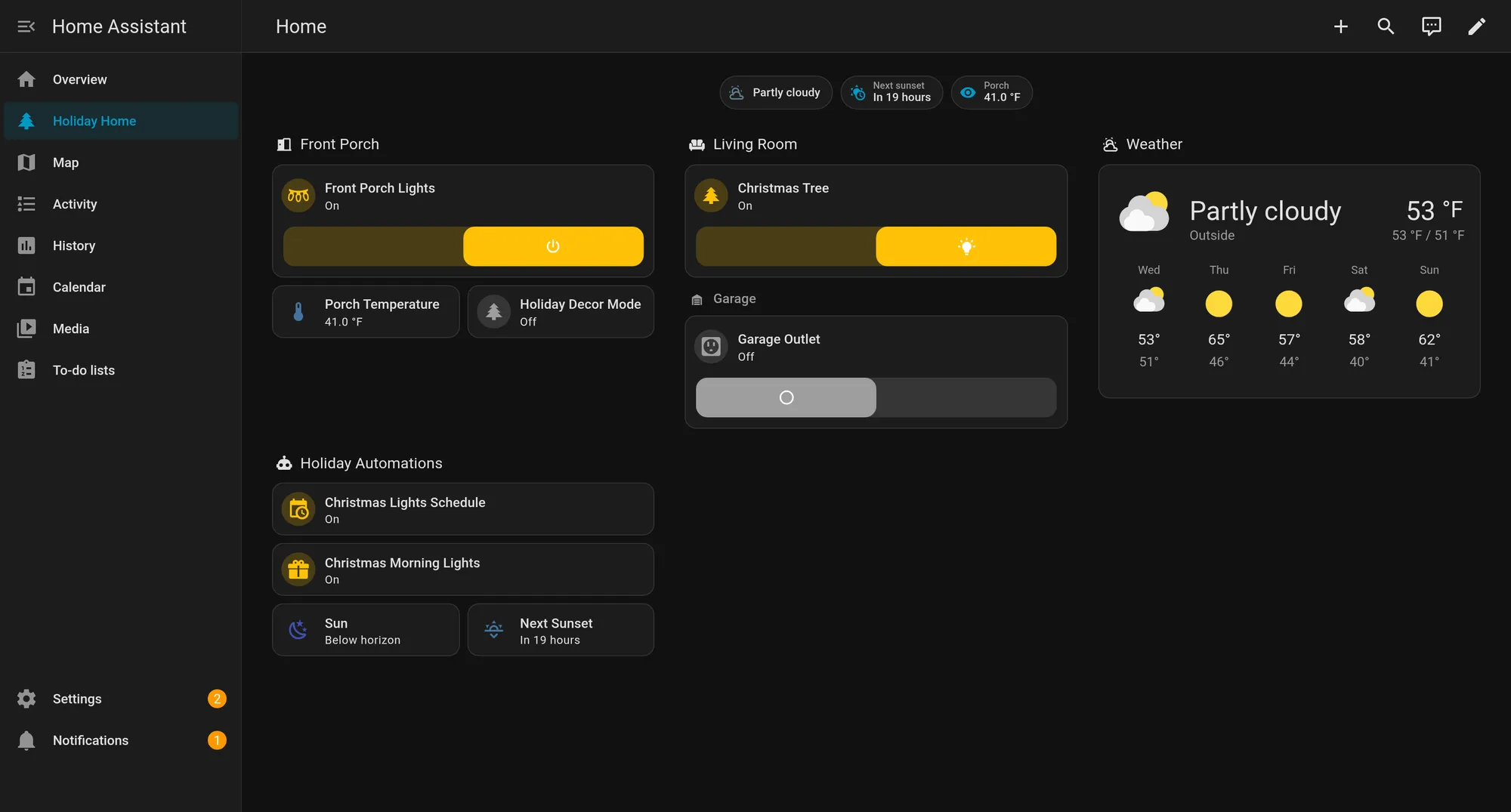
A Home Assistant dashboard is the screen you and your household see when you open the app: which lights are on, the temperature in each room, who’s home. You don’t have to build one. Home Assistant generates a dashboard from your devices out of the box. When you’re ready to make your own, start a new dashboard, use the Sections view (the default), add Tile cards for the things you control most, and put at-a-glance states in badges across the top. This guide explains how the pieces fit together and links to our step-by-step guides for each part.
The pieces, from biggest to smallest
| Piece | What it is | Where you change it |
|---|---|---|
| Dashboard | A whole screen in the sidebar, such as “Home” or “Kitchen tablet”. You can have several. | Settings > Dashboards |
| View | A tab inside a dashboard. Each view has a layout type. | Edit the dashboard, then the + button in the top bar |
| Section | A group of cards in the Sections view, usually with a heading. | Create section, in the Sections view |
| Card | One block that shows or controls something: a light, a graph, a camera. | Add card |
| Badge | A small chip at the top of a view showing a state, like a temperature or who’s home. | Add badge, in the view header |
Built-in dashboards vs your own
Home Assistant ships with built-in dashboards that build themselves from your devices and areas: Home, Activity, Energy, History, Map and To-do lists in the sidebar, plus Lights, Security, Climate and Maintenance dashboards listed under Settings > Dashboards. You can’t delete the built-in dashboards, and you can only edit them in limited ways. You also can’t add views to them.
For anything custom, create your own dashboard under Settings > Dashboards. A common pattern is one detailed dashboard for you, a simpler one for the family, and a focused one for a wall tablet.
Views: pick Sections unless you have a reason not to
Home Assistant has four view types:
- Sections (the default): cards on a grid, grouped into sections. You can resize cards and drag them around, and you don’t need stack cards to group things.
- Masonry: cards flow into columns based on their size. Many older tutorials use it.
- Panel: one card, full width. Good for a map, a floor plan or a camera.
- Sidebar: a wide column and a narrow one on the right.
Each view can have a title or icon, its own theme and a background. You can also hide a view from specific users. If you have an older Masonry view, Home Assistant can migrate its content into a Sections view. You can’t convert a Sections view back to another type.
Two Sections settings are worth knowing. Max number of sections wide caps how many columns appear on a wide screen. Dense section placement lets Home Assistant fill gaps automatically, at the cost of some control over the order.
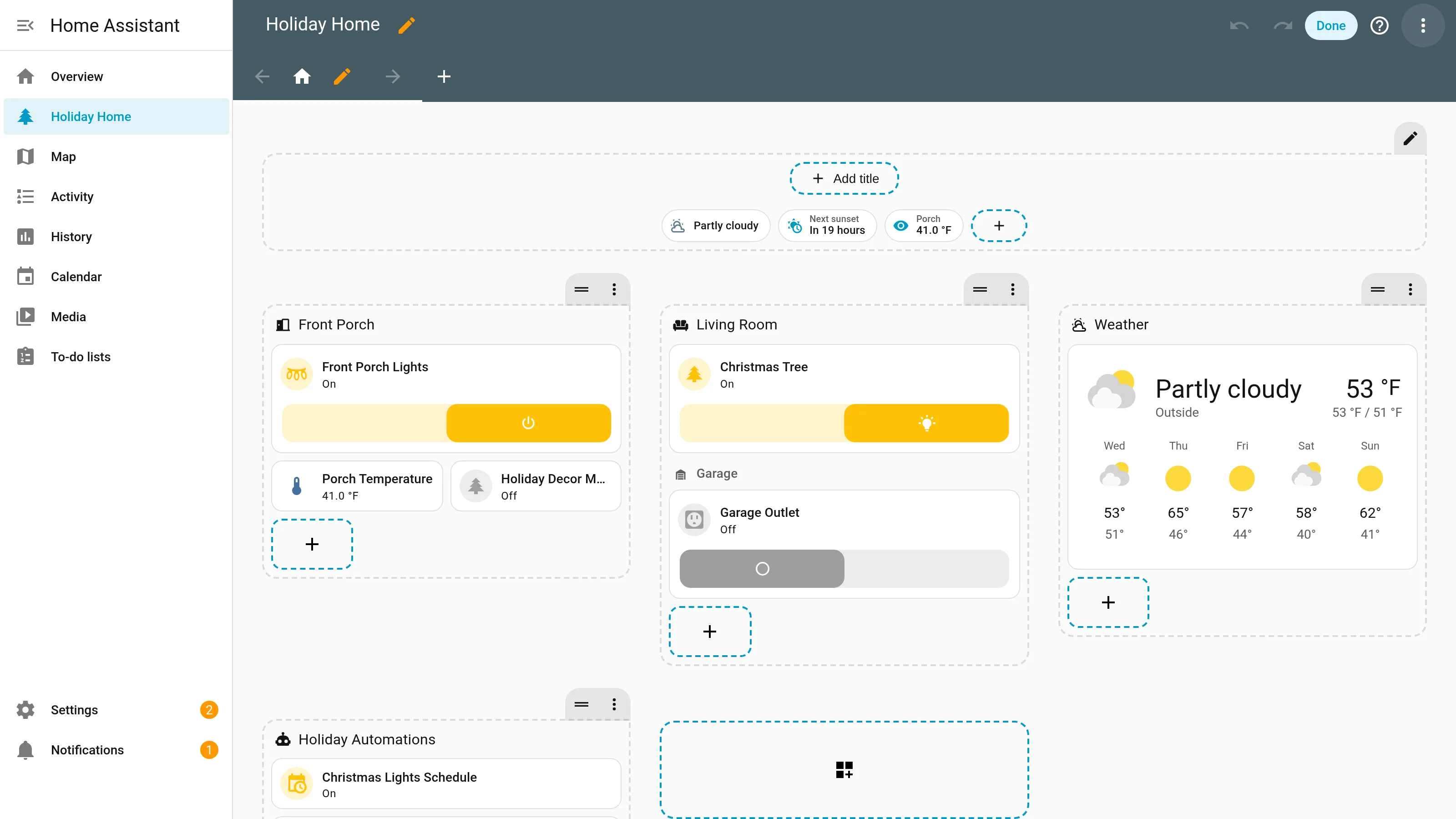
Our upcoming step-by-step guide to the Sections view walks through a full build.
Cards: start with Tile and Heading
Cards fall into a few groups in Home Assistant’s docs:
- Display and control: Tile, Heading, Entities, Glance, Area and the Picture cards. Home Assistant suggests the Tile card first in the Sections view.
- Device-specific: Light, Thermostat, Media control, Alarm panel, Weather forecast, Calendar, To-do list, Map and others.
- Data: Sensor, History graph, Statistics graph, Gauge, Energy, Markdown.
- Logic and layout: Conditional and Entity filter for showing cards only when they matter, and the Vertical stack, Horizontal stack and Grid cards. In the Sections view you rarely need the stack cards.
You can add a card two ways: by entity (pick the entities, then a card from the preview) or by card (browse the card list). Many cards support features, such as a brightness slider on a Tile card, plus custom tap actions and headers and footers.
Badges, visibility and per-user dashboards
Badges sit in the view header and suit states you want at a glance: outside temperature, open windows, who’s home. They support tap actions. Sidebar and Panel views don’t support badges.
Visibility is how one dashboard can serve everyone. You can show a card, a badge or a whole section only to specific users, or only under conditions, like a state or the screen width. The conditions match the Conditional card’s. If you set several conditions, all of them have to be true. That’s the foundation for phone layouts and for hiding admin controls from the kids.
Community cards: Mushroom, Bubble Card and the Marketplace
Home Assistant’s built-in cards cover most needs. Community cards add different styles and behaviors. Two of the most popular are Mushroom, a set of clean, minimal cards, and Bubble Card, known for pop-ups and mobile navigation.
There are two ways to install them:
- From the Marketplace (Home Assistant 2026.11 and newer): HACS is now built into Home Assistant as the Marketplace, under Settings > Marketplace. It installs dashboard cards and adds them as resources for you. Our HACS-to-Marketplace guide covers the change.
- Manually from GitHub (any version): both projects publish their files on GitHub. For Mushroom, the README says to download
mushroom.jsfrom the latest release, put it in yourconfig/wwwfolder, and add/local/mushroom.jsas a JavaScript Module resource. Home Assistant’s developer docs give the path: go to Settings > Dashboards, open the top-right menu, select Resources, then Add resource. On Home Assistant 2026.10 you don’t need to turn on Advanced Mode for this; older versions and some READMEs, including Mushroom’s, still mention it. In edit mode, the dashboard’s three-dot menu also has Manage resources. Bubble Card’s README describes the same steps forbubble-card.js.
Community cards are made by their authors, not the Home Assistant project. Check a project’s recent activity before you rely on it, and remember that a card left unmaintained can break after a Home Assistant update.
Our upcoming Mushroom vs Bubble Card comparison builds the same dashboard with each.
Tablets, wall panels and phones
The same dashboard works in a browser, the Home Assistant app on a phone, or a tablet on the wall. What changes is the layout and the hardware:
- Wall tablets and panels: you’ll want a kiosk mode so the screen stays on Home Assistant, plus a plan for power (battery charge limits, or PoE). Our upcoming tablet buying guide and room-by-room wall-tablet build cover both.
- Phones: narrow screens favor one column, large tap targets and navigation at the bottom. Visibility conditions let you show a phone-only layout without a separate dashboard. Our upcoming mobile dashboard guide covers this.
YAML, if you want it
You can build everything in the visual editor. If you’d rather copy and paste, every dashboard can also be edited as YAML through the raw configuration editor: edit the dashboard (pencil icon), open the three-dot menu and select Raw configuration editor. To keep a dashboard in files instead, Home Assistant’s multiple dashboards docs explain how to set up a dashboard in YAML mode from configuration.yaml, including loading resources there. Our upcoming dashboard YAML library will have versioned YAML you can paste in: core-cards-only versions plus Mushroom and Bubble Card variants.
Every guide in this series
Live now:
Coming soon:
- Getting started with dashboards: Sections view, cards, badges and visibility
- Best tablets and wall panels for a Home Assistant dashboard
- Holiday dashboard: Christmas theme, countdown card and tree-lights controls
- Free Home Assistant dashboard YAML templates
- Mushroom vs Bubble Card: which card set to install
- Build a room-by-room wall-tablet dashboard
- Home Assistant mobile dashboard layouts
- Set up the Home Assistant Energy dashboard
Want to try before you build? Home Assistant’s interactive demo lets you click around a full dashboard in your browser.
How pages like this are made: How we work.
Sources
- Home Assistant docs: Dashboards
- Home Assistant docs: Multiple dashboards
- Home Assistant docs: Dashboard views
- Home Assistant docs: Sections view
- Home Assistant docs: Dashboard cards
- Home Assistant docs: Badges
- Home Assistant docs (next): Marketplace integration
- GitHub: Mushroom cards (README and releases)
- GitHub: Bubble Card (README and releases)
- Home Assistant developer docs: Register resources
- Home Assistant: interactive demo