

Home Assistant · Guides & Tutorials
Home Assistant Christmas lights automation: sunset, holiday calendar and away safety (with blueprint)
Turn Christmas lights on at sunset and off at bedtime in Home Assistant, with weekend schedules, away handling and a free blueprint you can import.
Some links on this page are affiliate links. If you buy through them, we earn a commission. The price you pay does not change. Affiliate disclosure.
As an Amazon Associate we earn from qualifying purchases.
Plug your lights into a smart plug, import our blueprint, and Home Assistant will switch them on at sunset and off at bedtime every night of the season. Weeknights and weekends get their own off times. If the house is empty at sunset, the lights stay dark until someone gets home, and they switch off when the last person leaves. Outside your season dates the automation does nothing at all. The presence options are toggles you can change.
The whole thing is one automation built from a blueprint. You don’t need to write any YAML unless you want to.
What you need
- Home Assistant 2026.2 or newer. The blueprint asks for 2026.2.0 because it relies on negative sunset offsets in the duration picker. The current release is 2026.10.2.
- Your home location and time zone set correctly under Settings > System > Home information. Sunset times come from them.
- One or more smart plugs or smart lights that show up in Home Assistant as
switchorlightentities. - At least one
personset up with a phone or another tracker, if you want the away handling.
Any plug works as long as Home Assistant shows it as a switch or a light: Zigbee (through ZHA or Zigbee2MQTT), Wi-Fi, Z-Wave or Matter. The blueprint calls homeassistant.turn_on and homeassistant.turn_off, so one automation can mix plugs and bulbs.
What the blueprint does
| When | What happens | Condition |
|---|---|---|
| Sunset, plus or minus your offset | Lights on | If “only when someone is home” is on, at least one person is home |
| Weekday off time | Lights off | Today is not one of your weekend nights |
| Weekend off time | Lights off | Today is one of your weekend nights |
| The last person leaves home | Lights off | “Turn off when the last person leaves” is on |
| Someone comes home to an empty house | Lights on | It’s after sunset (plus your offset) and before tonight’s off time: the weekend off time on weekend nights, the weekday one otherwise |
Every row also requires today to be inside your season dates. Outside the season, none of these run, so the automation won’t touch your plugs the rest of the year.
The “comes home” row fixes the gap you’d otherwise have: if everyone is out at sunset and “only when someone is home” is on, the sunset step skips the lights. When the first person gets back before bedtime, they come on. After the off time, coming home doesn’t turn them on.
The season repeats every year. The blueprint only looks at the month and day of your start and end dates, so a season from November 27 to January 6 wraps past New Year without any extra setup.
Step 1: Import the blueprint
The quickest way is the import button. It opens the blueprint import dialog in your own Home Assistant with our blueprint address already filled in:

The button needs the My Home Assistant link set up in your browser. The first time you use it, it asks for your Home Assistant address, and it only works if your instance has the “my” integration enabled, which is part of the default setup. Then select Preview and Import blueprint.
To do it without the button:
- Go to Settings > Automations & scenes > Blueprints.
- Select Import blueprint in the bottom-right corner.
- Paste the blueprint address and select Preview:
https://technogecko.net/blueprints/christmas-lights-automation.yaml - Select Import blueprint.
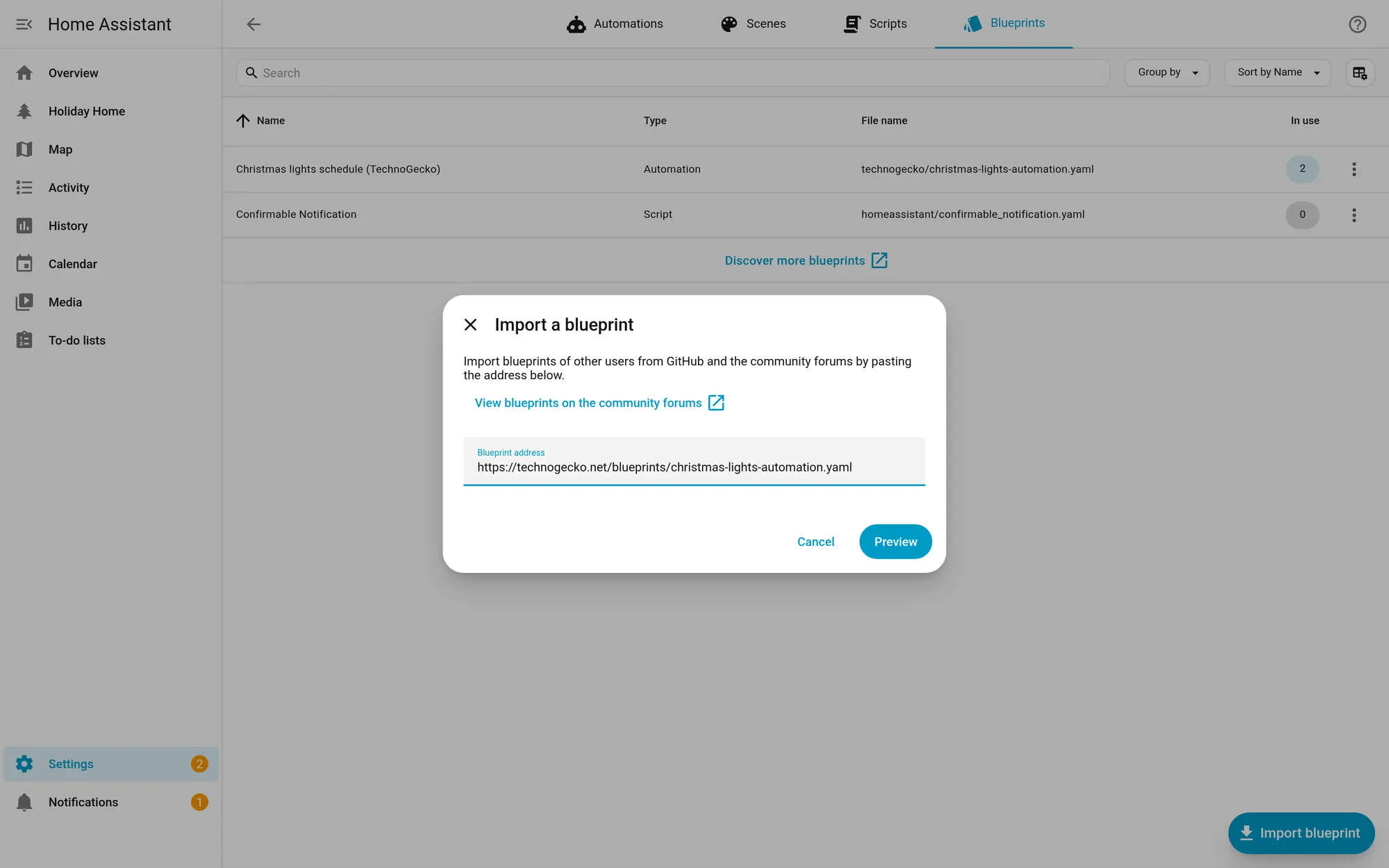
Because our file isn’t on GitHub or a Home Assistant website, the import dialog shows a warning, Review this blueprint source. It doesn’t block anything: you can still select Import blueprint. A URL import saves the blueprint in a technogecko.net/ blueprint folder.
Prefer to do it by hand? Download the file and save it as config/blueprints/automation/technogecko/christmas-lights-automation.yaml. It shows up under Blueprints right away, without a reload. If you later edit a blueprint you already use, reload automations under Settings > Tools > YAML > Automations.
Pick one method, not both. The URL import uses a technogecko.net/ folder and the manual copy uses technogecko/, so doing both leaves two copies of the blueprint in your list.
Step 2: Create the automation
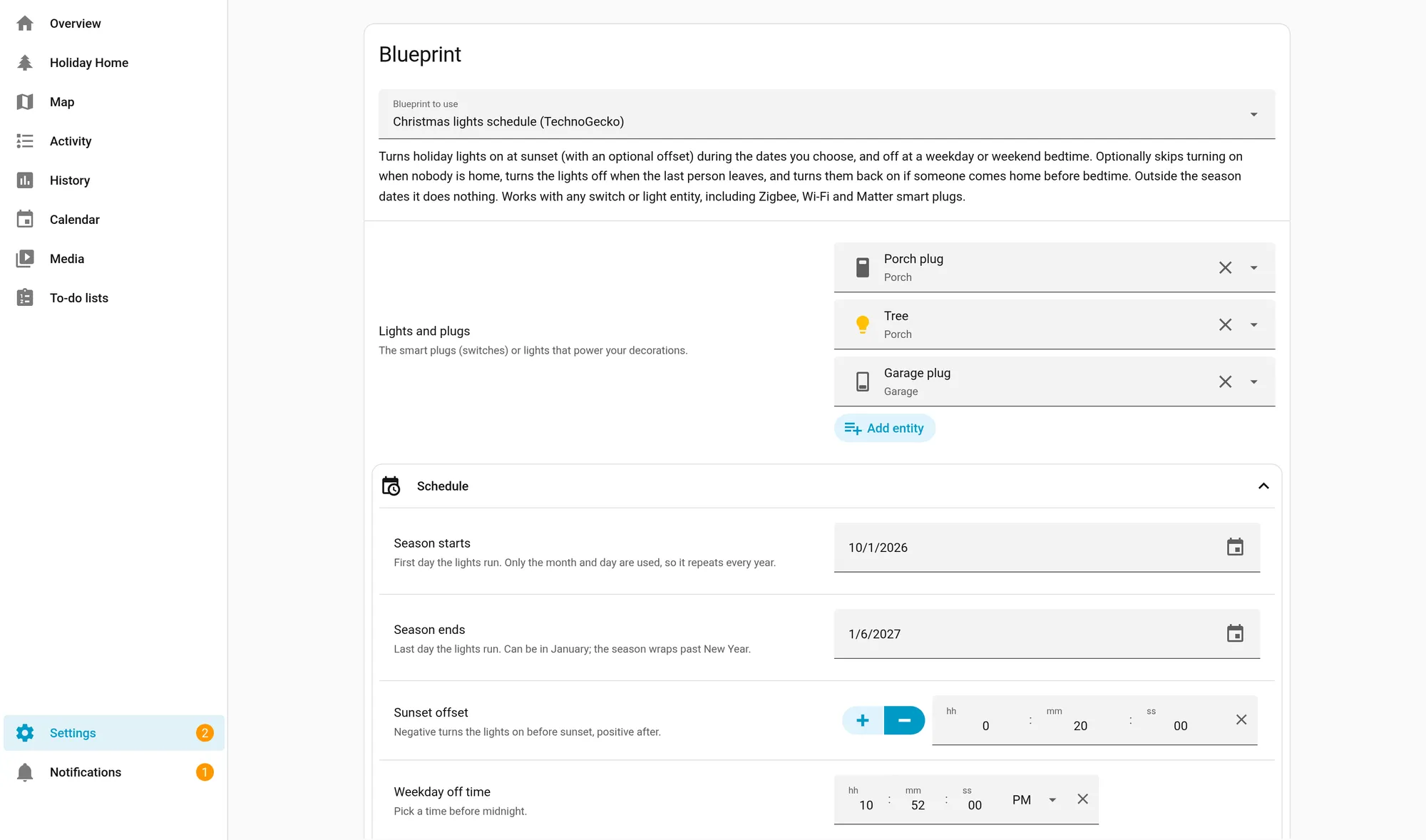
- In Settings > Automations & scenes > Blueprints, select Christmas lights schedule (TechnoGecko).
- Under Lights and plugs, pick your plugs and lights. The list only shows switch and light entities, and you can pick as many as you like.
- Under Schedule, set:
- Season starts and Season ends. The year doesn’t matter.
- Sunset offset. For a negative offset, press the − button and type 00:20:00 to turn on 20 minutes before sunset. Leave it positive to wait until it’s darker.
- Weekday off time and Weekend off time. Keep both before midnight (more on that below).
- Weekend nights. The default is Friday and Saturday, the two nights people usually stay up later.
- Under Away handling, leave Home zone as
zone.homeunless you use a different zone, and decide whether the lights need someone home to turn on, and whether they turn off when the house empties. - Select Save and give the automation a name.
The switch-and-light filter applies in the editor. If you write the automation in YAML instead, list only switch and light entities.
The blueprint YAML
Here’s the full file if you want to read it before importing, or copy it in by hand.
blueprint:
  name: Christmas lights schedule (TechnoGecko)
  description: >-
    Turns holiday lights on at sunset (with an optional offset) during the
    dates you choose, and off at a weekday or weekend bedtime. Optionally
    skips turning on when nobody is home, turns the lights off when the
    last person leaves, and turns them back on if someone comes home
    before bedtime. Outside the season dates it does nothing. Works with
    any switch or light entity, including Zigbee, Wi-Fi and Matter smart
    plugs.
  domain: automation
  author: TechnoGecko
  source_url: https://technogecko.net/blueprints/christmas-lights-automation.yaml
  homeassistant:
    min_version: "2026.2.0"
  input:
    lights:
      name: Lights and plugs
      description: The smart plugs (switches) or lights that power your decorations.
      selector:
        entity:
          multiple: true
          filter:
            - domain:
                - switch
                - light
    schedule_section:
      name: Schedule
      icon: mdi:calendar-clock
      input:
        season_start:
          name: Season starts
          description: First day the lights run. Only the month and day are used, so it repeats every year.
          default: "2026-11-27"
          selector:
            date:
        season_end:
          name: Season ends
          description: Last day the lights run. Can be in January; the season wraps past New Year.
          default: "2027-01-06"
          selector:
            date:
        sunset_offset:
          name: Sunset offset
          description: Negative turns the lights on before sunset, positive after.
          default:
            hours: 0
            minutes: 0
            seconds: 0
          selector:
            duration:
              allow_negative: true
        weekday_off_time:
          name: Weekday off time
          description: Pick a time before midnight.
          default: "22:30:00"
          selector:
            time:
        weekend_off_time:
          name: Weekend off time
          description: Pick a time before midnight.
          default: "23:30:00"
          selector:
            time:
        weekend_days:
          name: Weekend nights
          description: Nights that use the weekend off time. Pick at least one.
          default:
            - fri
            - sat
          selector:
            select:
              multiple: true
              options:
                - label: Monday
                  value: mon
                - label: Tuesday
                  value: tue
                - label: Wednesday
                  value: wed
                - label: Thursday
                  value: thu
                - label: Friday
                  value: fri
                - label: Saturday
                  value: sat
                - label: Sunday
                  value: sun
    presence_section:
      name: Away handling
      icon: mdi:home-account
      input:
        home_zone:
          name: Home zone
          description: Its state is the number of people at home.
          default: zone.home
          selector:
            entity:
              filter:
                - domain: zone
        require_someone_home:
          name: Only turn on when someone is home
          default: true
          selector:
            boolean:
        off_when_everyone_leaves:
          name: Turn off when the last person leaves
          default: true
          selector:
            boolean:

mode: queued
max_exceeded: silent

variables:
  season_start: !input season_start
  season_end: !input season_end
  home_zone: !input home_zone
  require_someone_home: !input require_someone_home
  off_when_everyone_leaves: !input off_when_everyone_leaves

triggers:
  - trigger: sun
    event: sunset
    offset: !input sunset_offset
    id: lights_on
  - trigger: time
    at: !input weekday_off_time
    id: weekday_off
  - trigger: time
    at: !input weekend_off_time
    id: weekend_off
  - trigger: numeric_state
    entity_id: !input home_zone
    below: 1
    id: everyone_left
  - trigger: numeric_state
    entity_id: !input home_zone
    above: 0
    id: someone_home

# Season check for every trigger: outside the season dates, nothing happens.
conditions:
  - condition: template
    value_template: >-
      {% set today = now().strftime('%m-%d') %}
      {% set s = season_start[5:10] %}
      {% set e = season_end[5:10] %}
      {% if s <= e %}{{ s <= today <= e }}{% else %}{{ today >= s or today <= e }}{% endif %}

actions:
  - choose:
      - conditions:
          - condition: trigger
            id: lights_on
          - condition: template
            value_template: >-
              {{ not require_someone_home or (states(home_zone) | int(0)) > 0 }}
        sequence:
          - action: homeassistant.turn_on
            target:
              entity_id: !input lights
      - conditions:
          - condition: trigger
            id: weekday_off
          - condition: not
            conditions:
              - condition: time
                weekday: !input weekend_days
        sequence:
          - action: homeassistant.turn_off
            target:
              entity_id: !input lights
      - conditions:
          - condition: trigger
            id: weekend_off
          - condition: time
            weekday: !input weekend_days
        sequence:
          - action: homeassistant.turn_off
            target:
              entity_id: !input lights
      - conditions:
          - condition: trigger
            id: everyone_left
          - condition: template
            value_template: "{{ off_when_everyone_leaves }}"
        sequence:
          - action: homeassistant.turn_off
            target:
              entity_id: !input lights
      - conditions:
          - condition: trigger
            id: someone_home
          # Only between sunset (plus your offset) and tonight's off time.
          - condition: sun
            after: sunset
            after_offset: !input sunset_offset
          - condition: or
            conditions:
              - condition: and
                conditions:
                  - condition: time
                    weekday: !input weekend_days
                  - condition: time
                    before: !input weekend_off_time
              - condition: and
                conditions:
                  - condition: not
                    conditions:
                      - condition: time
                        weekday: !input weekend_days
                  - condition: time
                    before: !input weekday_off_time
        sequence:
          - action: homeassistant.turn_on
            target:
              entity_id: !input lights
A few choices worth explaining:
- The older
suntrigger. The current automation editor offers a newer Sunset trigger, but Home Assistant’s docs say the oldertrigger: sunYAML still works, and it takes the offset straight from the duration picker. - Trigger IDs. Five triggers feed one
chooseblock, and each branch checks which trigger fired. That keeps the whole schedule in one automation. - One season check for everything. The season template sits in the automation’s top-level
conditions, so it applies to every trigger, including the off times and the presence triggers. - The home zone. The state of
zone.homeis the number of people inside it, so “below 1” means the last person just left and “above 0” means the first person just arrived. - The arrival window. The “comes home” branch uses the older
suncondition (after sunset, with the same offset as the trigger) plus a time condition for tonight’s off time. Home Assistant’s docs say the older condition keeps working in YAML and is the one to use when you need an exact offset. “After sunset” passes until midnight, which is another reason to keep off times before midnight. - A plain entity list. The Lights and plugs input is an entity picker, so the actions target exactly the entities you chose.
- Variables. Blueprint inputs aren’t available inside templates until you copy them into
variables, which is why the season dates and toggles are listed there.
Optional: keep the lights on for Christmas Day
The Holiday integration adds a calendar of your country’s public holidays. It needs no account and doesn’t fetch data from the internet. Add it under Settings > Devices & services > Add integration > Holiday, then use a calendar trigger to switch the lights on Christmas morning.
alias: "Christmas Day: lights on in the morning"
mode: queued
triggers:
  - trigger: calendar
    event: start
    entity_id: calendar.united_states
    offset: "08:00:00"
conditions:
  - condition: template
    value_template: "{{ trigger.calendar_event.summary == 'Christmas Day' }}"
actions:
  - action: homeassistant.turn_on
    target:
      entity_id:
        - switch.porch_plug  # your entity
        - light.tree  # your entity
With the country set to the United States, the calendar is calendar.united_states and the event is called “Christmas Day”. The condition matches that name exactly, so Christmas Eve won’t set it off. Holiday events are all-day events that start at midnight, so the eight-hour offset moves the trigger to 8:00 AM. The docs warn against mode: single for calendar triggers, because two events can start at the same moment. Your regular off time still applies that night.
Choosing a plug for outdoor lights
Whatever you buy, check these four things on the spec sheet:
- An outdoor rating. Look for an ingress protection (IP) rating of at least IP44, which means protection against splashing water. An indoor plug in an outdoor outlet box isn’t the same thing.
- The load rating. Add up the wattage of everything on the plug and stay well under its maximum.
- Local control. Zigbee, Z-Wave and Matter plugs talk to Home Assistant locally. Some Wi-Fi plugs need the maker’s cloud, which adds a point of failure on the night of your party.
- Signal at the outlet. Outdoor outlets are often the weakest spot in a Zigbee, Thread or Wi-Fi network. A mains-powered Zigbee or Thread device nearby helps the mesh reach it.
Outdoor plugs to consider (US)
We compare these in detail, with each plug’s Home Assistant route, outdoor rating and load limits, in our outdoor smart plugs for Christmas lights guide. The short version, from manufacturer specs and Home Assistant’s docs:
- TP-Link Kasa EP40M: two outlets, Matter over Wi-Fi, needs a GFCI outlet outdoors.
- TP-Link Tapo P400M: two outlets, IP65, add it to Home Assistant with Matter.
- Zooz ZEN05 800LR: Z-Wave, Works with Home Assistant certified, but only 150 W of LED lighting.
- Leviton D215O-1RE: Matter over Wi-Fi with a built-in dusk sensor.
- IKEA TOFSMYGGA: Matter over Thread, with a known pairing bug; see our pairing explainer.
Troubleshooting
The lights came on at the wrong time. Check the time zone and home location in Settings > System > Home information. Both the sunset trigger and the time condition use Home Assistant’s time zone, not your phone’s.
The offset went the wrong way. A negative offset fires before sunset and a positive one after. If you want “when it’s actually dark”, try +00:20:00 rather than sunset itself.
The weekend off time didn’t fire on Saturday night. The time condition checks the current day. If your weekend off time is after midnight, say 00:30, it runs early on Sunday, and Sunday has to be in your weekend nights instead of Saturday. Keeping both off times before midnight avoids the problem.
Nothing happened after a restart. Triggers only fire at the moment they happen. If Home Assistant was restarting at sunset, the lights stay off until you turn them on, even with people at home. The off times still work.
One plug was unavailable. The other plugs still switch, and the trace looks like a normal run. The offline plug only shows up as a WARNING in Settings > System > Logs: “Referenced entities … are missing or not currently available”. A plug that was offline at bedtime keeps whatever state it had, so it can come back on late. Check its signal and power.
Run actions did nothing. Every step depends on which trigger fired, so running the actions by hand from the automation’s menu skips all of them. To try it out, temporarily set an off time a couple of minutes ahead.
The lights didn’t turn on although we were home. If “Only turn on when someone is home” is on, check that each person’s tracker reports them as home. The home zone counts people, not devices. If you got home after your off time, that’s by design: the lights only come back on for arrivals before bedtime.
Make it yours
Want to change something the form doesn’t offer, like dimming the tree at 9 PM? Open the automation, select the three dots menu, then Take control. Home Assistant turns it into a regular automation you can edit, and the blueprint stays as it was for your other automations.
How pages like this are made: How we work.
Sources
- Home Assistant docs: About the blueprint schema
- Home Assistant docs: Blueprint selectors
- Home Assistant docs: Using automation blueprints
- Home Assistant docs: Automation triggers (sun trigger)
- Home Assistant docs: Sunset trigger
- Home Assistant docs: Time condition
- Home Assistant docs: Zone integration
- Home Assistant docs: Holiday integration
- Home Assistant docs: Calendar integration (calendar trigger)
- Home Assistant docs: Create your first automation
- Shelly Knowledge Base: Outdoor Plug S Gen3 (IP44 rating explained)
- Home Assistant docs: My Home Assistant integration
- My Home Assistant: FAQ
- TP-Link: Kasa EP40M product page
- TP-Link: Tapo P400M product page
- Home Assistant docs: TP-Link Smart Home integration
- Zooz: ZEN05 outdoor smart plug manual
- Home Assistant: Zooz (Works with Home Assistant)
- Leviton: D215O-1RE product page
- Home Assistant forum: Leviton D215 Matter pairing and firmware (Jan 2026)
- IKEA US: TOFSMYGGA outdoor smart plug
- GitHub issue #179922: Matter BLE proxy commissioning times out with IKEA devices