

Home Assistant · Guides & Tutorials
Connect Claude or ChatGPT to Home Assistant with the built-in MCP server
Turn on Home Assistant's built-in MCP server, limit what an AI can control, and connect Claude's free plan. Plus what ChatGPT requires, what MCP can't do yet, and privacy notes.
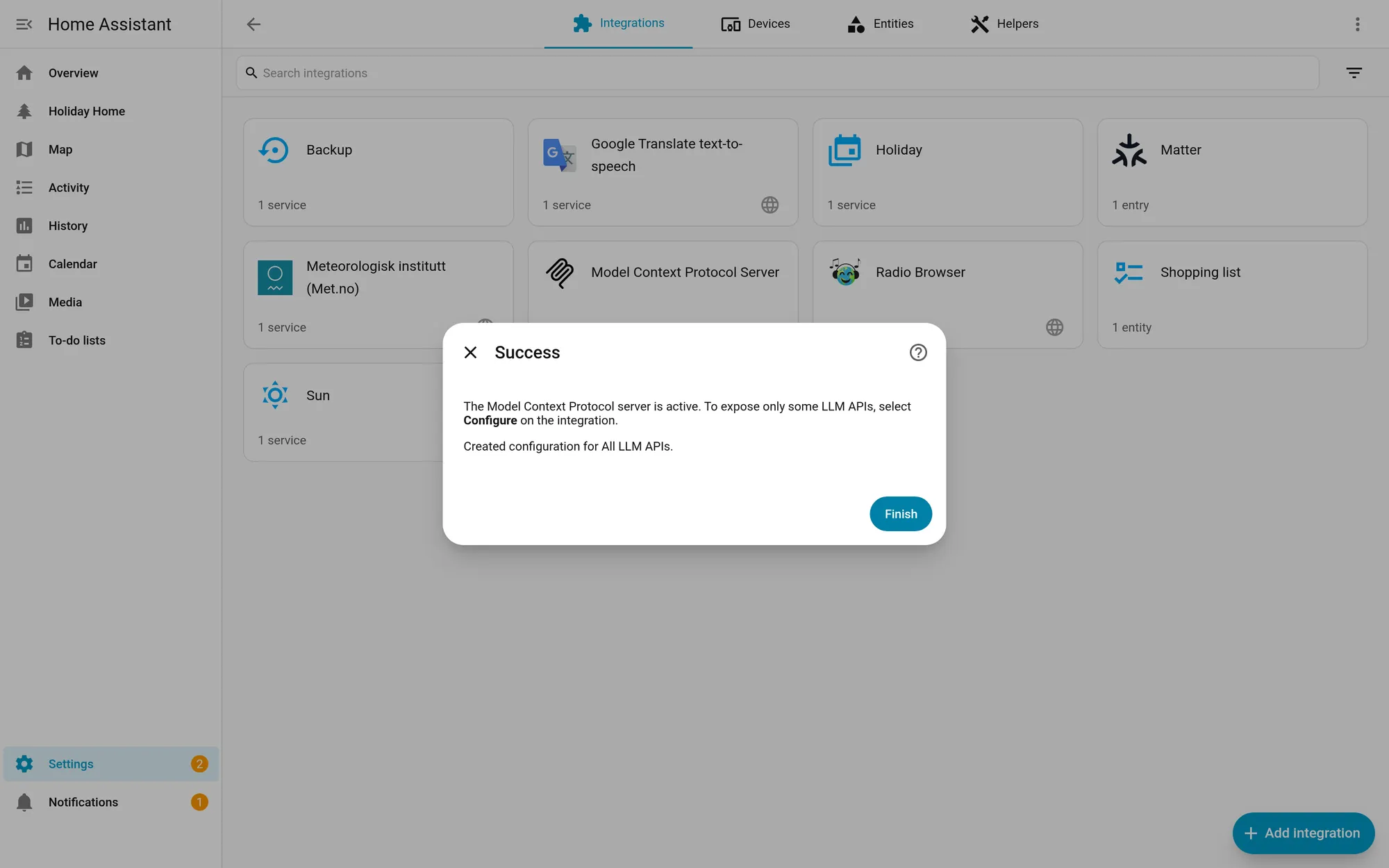
Home Assistant has a built-in Model Context Protocol (MCP) server, so an AI app like Claude can read the state of your home and control your devices. To set it up, turn on MCP under Settings > System > AI, copy the server URL, and add it to the AI app as a custom connector. Before you do, limit which devices the AI can see. Two catches: Claude and ChatGPT connect from their own cloud, so your Home Assistant has to be reachable from the internet. And of the two, only Claude lets you do this on a free plan (one custom connector). ChatGPT’s full MCP support is limited to its business plans.
What MCP is, in one paragraph
MCP is an open standard for connecting AI apps to tools and data. Home Assistant’s MCP Server integration exposes the same tools its own Assist voice assistant uses: turn things on and off, set values, and read the current state of what you’ve exposed. The AI app decides when to call those tools based on what you ask, like “Is the garage light on?” or “Turn off the porch lights.”
Before you start
You need:
- Home Assistant 2026.10 or newer for the one-click setup described here. The integration itself has existed since 2025.2.
- An administrator account to turn it on.
- Remote access to your Home Assistant. Home Assistant’s docs say that if the AI app runs in the cloud, your instance “must be accessible from the internet”. Anthropic says the same about Claude: custom connectors connect from Anthropic’s cloud on every Claude app, including Claude Desktop. Home Assistant’s docs suggest Home Assistant Cloud or another remote access method, and note that Home Assistant Cloud avoids the proxy and hostname problems covered under troubleshooting below.
- An AI app that supports remote MCP servers. For a free option, see the Claude steps below.
Step 1: Decide what the AI can control
Do this first. A new MCP setup exposes “everything Home Assistant has to offer”, in the words of the 2026.10 release notes, and allows administrator accounts only. Home Assistant’s docs recommend the main MCP server on the AI page (labeled Your MCP API in Home Assistant 2026.10) for full control. For a first try, we suggest narrowing it down instead:
- Go to Settings > Devices & services, select Model Context Protocol Server, then Configure.
- Turn off Expose all LLM APIs. Control Home Assistant then appears: select Assist. Leave Require an administrator account on (the default). With this setting, Home Assistant’s docs say clients “can only control or provide information about entities that are exposed to them”.
- Go to Settings > Voice assistants, open the Expose tab, and expose only what you want the AI to reach. A few lights and sensors is a good start. Home Assistant’s docs say exposure exists so that sensitive devices “such as locks and garage doors” can’t be controlled by accident. Leave those off.
Step 2: Turn on MCP and copy the URL
- Go to Settings > System > AI. (Before 2026.10 this page was called AI tasks, per the 2026.10 release notes.)
- On the Model Context Protocol card, select Enable.
- Next to Your MCP API, select the copy icon to copy its URL. Your MCP API follows the options you set under Configure in Step 1; its gear icon opens those same options. The rows under Individual MCP APIs each expose a single LLM API, such as Assist.
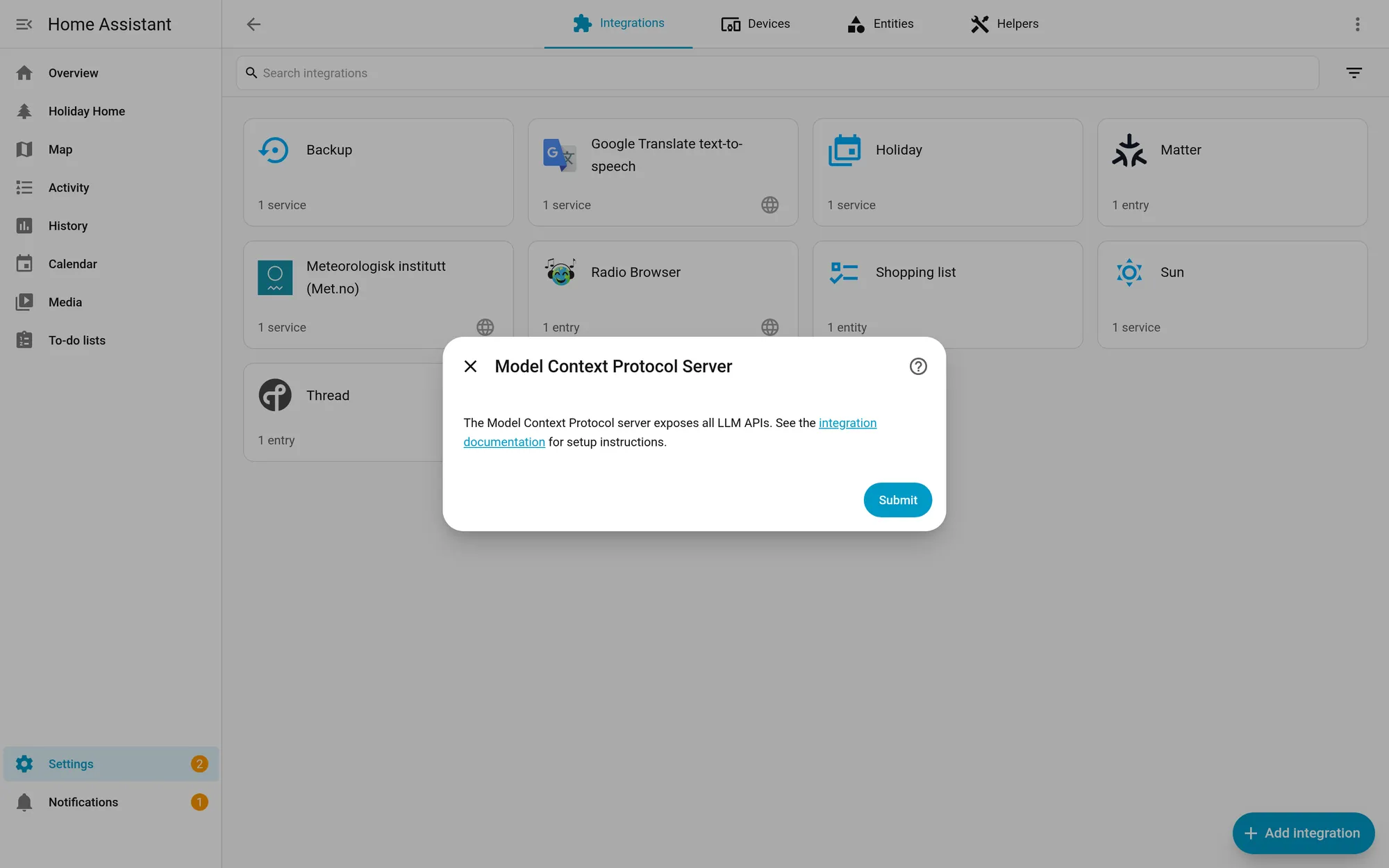
The page shows only the end of each URL. The copy icon adds the address you’re using right now, so if you opened Home Assistant at a local address, the copied URL is local. A cloud AI app has to reach the URL from the internet, so use your remote address with the same path (for example /api/mcp). Home Assistant’s docs point to Home Assistant Cloud or another remote access method for that.
Step 3: Connect Claude (free plan)
Anthropic’s help center says custom connectors using remote MCP are available on Free, Pro, Max, Team and Enterprise plans, and “Free users are limited to one custom connector.” Directory connectors don’t count toward that limit.
Following Home Assistant’s docs:
- On claude.ai, open the connectors page and select Add > Add custom connector. In Claude Desktop, go to Settings > Connectors and select Add > Add custom connector. (Anthropic’s own help pages currently describe the path as Customize > Connectors. Use whichever your app shows.)
- Enter Name:
Home Assistantand MCP Server URL: your copied URL. - Select Add. Claude checks the server and shows a dialog.
- Set Authentication to Sign in now and OAuth client to Use Claude’s published identity.
- Select Add, then Connect on the connector’s page.
- Log in to your Home Assistant when it asks.
To use it, turn the connector on for a conversation from the + button in the chat box, under Connectors. Home Assistant’s docs note that Claude asks your permission before calling any Home Assistant tool. If Claude offers to always allow a tool, we’d keep asking each time for anything that switches devices.
What about ChatGPT?
Home Assistant’s docs include ChatGPT steps: add a custom MCP server under Plugins, choose OAuth, then sign in to Home Assistant. There’s a catch, though. OpenAI’s help center says custom MCP server connections with full support, including write actions, are “available for ChatGPT Business and Enterprise/Edu customers on ChatGPT web”. Pro users can connect custom MCP servers with read and fetch permissions only. The free plan isn’t listed. If you’re on one of those plans, follow the ChatGPT example on Home Assistant’s MCP Server page. It’s web only: OpenAI says custom MCP servers can’t be connected on mobile.
Home Assistant’s docs also cover developer tools like Claude Code, Codex and OpenCode. They need their own accounts or setup and aren’t covered here.
What MCP can’t do yet
- It only sees what you allow. With the Assist API, the AI can control and read only exposed entities.
- No push. Home Assistant’s MCP server doesn’t support notifications, so the AI can’t be told when something happens. It only knows what it asks for. Sampling isn’t supported either.
- Resources are limited. The only resource is a read-only snapshot of your home’s current state, and only when the Assist API is in use.
- It’s for conversations, not automations. Your automations keep running in Home Assistant whether or not an AI is connected. MCP lets you talk to your home through an AI app; it doesn’t run anything on a schedule.
Privacy: what leaves your house
When the AI calls a Home Assistant tool, the result (entity names, states, the action taken) goes back to the AI provider’s servers as part of your conversation, and the provider’s privacy terms apply. Exposing fewer entities means less of your home goes into those chats. Remote access also means your Home Assistant is reachable from the internet, so use strong passwords and keep it updated.
If you’d rather keep everything local, Home Assistant can also use a local model through Ollama. Our upcoming Ollama guide and AI in Home Assistant hub cover the local options.
Troubleshooting
From Home Assistant’s MCP Server docs:
- Login keeps failing during setup. Check the OAuth details in your AI app. The client ID must be the AI app’s base URL, such as
https://claude.aiorhttps://chatgpt.com, never your Home Assistant address. Home Assistant doesn’t use a client secret: if the field is required, enter any text. Also check that the address you’re using matches the internal or external URL under Settings > System > Network. - Locked out after several failed attempts. If you’ve turned on IP bans, check
ip_bans.yamlin your configuration folder, remove your IP or the client’s IP, and restart Home Assistant. - “Authorization server metadata” or issuer errors behind a tunnel or reverse proxy. Make the external URL match the exact hostname and scheme the AI app uses. Then set up Home Assistant to trust your proxy’s forwarded headers.
- Claude can’t reach the server. Anthropic’s docs say servers on a private network, behind a VPN or blocked by a firewall won’t connect, even if you can reach them from your own computer.
How pages like this are made: How we work.
Sources
- Home Assistant docs: Model Context Protocol Server integration
- Home Assistant 2026.10 release notes (Connect your AI in one click)
- Home Assistant docs: Exposing entities to Assist
- Home Assistant docs: Remote access
- Claude Help Center: Get started with custom connectors using remote MCP
- Claude Help Center: Use connectors to extend Claude's capabilities
- OpenAI Help Center: Connecting custom MCP servers in ChatGPT
- Model Context Protocol: introduction